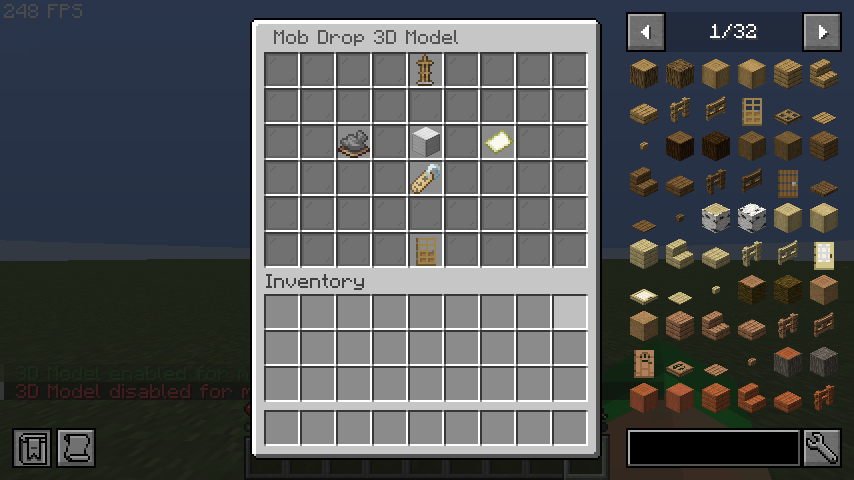
GUI Editors
CuriosPaper provides in-game visual editors for creating and configuring custom items. These editors are accessible through the /curios command.
Sections
| Page | Description |
|---|---|
| Item List | Browse and manage all custom items in a paginated GUI |
| Ability Editor | Configure potion effects and attribute modifiers |
| Recipe Editor | Create shaped, shapeless, furnace, anvil, and smithing recipes |
| Loot Table Editor | Browse, add, edit, and delete loot table entries with a 3-screen editor |
| Mob Drop Editor | Configure mob drops with entity types and chances |
| Trade Editor | Set up villager trades with professions and costs |
| 3D Model Editor | Configure 3D model rendering attachments for items |
| NBT & Enchants Editor | Configure custom NBT/PDC tags, enchantments, and toggles (unbreakable/placeable) |
| Mob Drop Model Editor | Configure 3D models that mobs wear when spawning with drops |
Accessing the Editor
/curios create <itemId>   — Create a new item and open the editor
/curios edit <itemId>     — Open the editor for an existing item
/curios list              — Open the paginated Item List GUI
Permission required: curiospaper.admin
Main Edit GUI
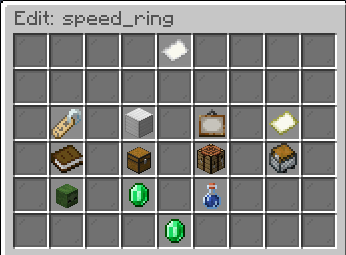
The main Edit GUI displays the current item configuration with clickable buttons to modify each property:
| Button | Icon | Slot | Function |
|---|---|---|---|
| Display Name | Name Tag | 10 | Edit item display name (supports color codes) |
| Set Material | Iron Block | 12 | Change item base material |
| Set Item Model | Painting | 14 | Set custom item model (1.21.4+) |
| Custom Model Data | Map | 16 | Set legacy CustomModelData integer |
| Edit Lore | Book | 19 | Edit lore lines (supports color codes) |
| NBT & Enchants Editor | Command Block | 21 | Open the NBT, Enchantments, and Placeable Editor |
| Required Slot | Chest | 23 | Set required accessory slot type(s) |
| Recipe | Crafting Table | 25 | Open the Recipe Editor |
| Loot Tables | Chest Minecart | 28 | Open the Loot Table Editor |
| Mob Drops | Zombie Head | 30 | Open the Mob Drop Editor |
| Villager Trades | Emerald | 32 | Open the Villager Trade Editor |
| Abilities | Potion | 34 | Open the Ability Editor |
| 3D Model Settings | Armor Stand | 37 | Open the 3D Model Editor |
| Save & Close | Emerald | 49 | Save all item configuration and close GUI |
Chat Input
Most editors use a chat-based input system. When prompted, type your value in chat. The ChatInputManager handles capturing and processing these inputs.
Mob Drop Model Editor
The Mob Drop Model Editor is a sub-editor accessible from the Mob Drop Editor. It allows configuring 3D models that mobs wear visually when they spawn with a configured drop.
Accessing
- Open the item editor:
/curios edit <itemId> - Click the Mob Drops button (zombie head icon)
- Click on an existing mob drop entry
- Click the 3D Model button
Settings
| Button | Slot | Function |
|---|---|---|
| Toggle Model | 20 | Enable/disable the 3D model for this mob drop |
| Model Material | 22 | Set the material of the model item (e.g., LEATHER_HORSE_ARMOR) |
| Model Data | 24 | Set CustomModelData integer or clear it |
| Item Model | 31 | Set a 1.21.4+ itemModel component (namespace:key) |
| Back | 49 | Return to the Mob Drop Editor |